

Joy Foroughi
Executive Assistant


Start in 30 Minutes: Best Video Editing Apps for Beginners in 2026
For most beginners in 2026, CapCut is the strongest overall pick: it's free, has no watermark, and handles auto-captions without a learning curve. If you're on an iPhone or iPad and want the fastest possible start, Apple iMovie or LumaFusion beat it for simplicity and touch-native controls. If you want a free tool that grows with you into professional color grading and audio work, DaVinci Resolve is the one to install tonight.

For most beginners in 2026, CapCut is the strongest overall pick: it's free, has no watermark, and handles auto-captions without a learning curve. If you're on an iPhone or iPad and want the fastest possible start, Apple iMovie or LumaFusion beat it for simplicity and touch-native controls. If you want a free tool that grows with you into professional color grading and audio work, DaVinci Resolve is the one to install tonight.
TL;DR:
CapCut remains the best free option for social-focused creators due to its no watermark policy and built-in auto-caption features.
DaVinci Resolve offers a professional-grade free version suitable for beginners willing to invest time to learn advanced color and audio tools.
iMovie and LumaFusion provide the easiest mobile editing experiences, with iMovie ideal for absolute beginners on Apple devices, and LumaFusion for more advanced iPad editing.
Apps like Wondershare Filmora and Premiere Elements are better for those seeking guided editing workflows without subscription commitments.
Many free or one-time purchase apps are sufficient for basic projects, but long-term growth into professional editing may require scaling up to more advanced tools.
Best Video Editing Apps for Beginners in 2026: The Quick Shortlist
Before comparing specs, it helps to know what "beginner-friendly" actually means in practice. It's not the app with the fewest buttons. It's the app that gets you from raw footage to a finished, exportable clip without forcing you to watch a 40-minute tutorial first. That distinction separates the apps below.
Here's the fast rundown of every major contender, with the one thing each does better than the rest.
CapCut — Best for social-first creators who want a genuinely free editor. It ships with no watermark and no resolution cap on its free tier, plus auto-captions and export presets tuned for TikTok, Instagram, and YouTube Shorts. Roundups consistently name it the best overall pick for most people in 2026 because of that combination.
DaVinci Resolve — Best for beginners who want a free path into professional-grade editing. Its free tier includes color grading and audio tools that other "beginner" apps charge for, and PCMag's 2026 testing still ranks it among the strongest free options tested.
Wondershare Filmora — Best for Windows and Mac beginners who want a simple timeline plus a large built-in effects library. The interface leans friendlier than Premiere Pro without feeling like a toy.
Adobe Premiere Elements — Best for beginners who want guided edits and a one-time purchase instead of a subscription. Digital Camera World points to its Quick, Guided, and Advanced modes as a genuine on-ramp for people who've never touched a timeline.
Adobe Premiere Pro — Best for beginners who already know they'll want to grow into a professional, industry-standard tool. It's overkill on day one, but the payoff is deep integration with After Effects and Photoshop later.
Apple iMovie — Best for absolute beginners on iPhone, iPad, or Mac who want zero setup friction. It's free, it's fast, and most people can cut a usable video within ten minutes of opening it.
Final Cut Pro — Best for Mac users who want a one-time purchase professional tool instead of a subscription. It's optimized for Apple Silicon, so it runs noticeably smoother than some subscription competitors on the same hardware.
LumaFusion — Best for mobile-first creators who want iPad-native, professional-level timelines. It's one of the few tablet editors that reviewers consider capable of producing genuinely publishable work as a primary tool, not a backup.
InShot — Best for casual creators who just want to trim a clip and slap a caption on it fast. It won't teach you editing fundamentals, but it also won't ask you to learn any.
VN — Best for people who want a CapCut-like experience without ByteDance ownership. It has a clean timeline and largely watermark-free exports on its free plan.
Canva Video — Best for absolute beginners who'd rather work in a browser than install anything. Its drag-and-drop timeline and AI Highlights auto-editing feature make template-led editing almost frictionless.
Descript — Best for creators making talking-head or interview content who want to edit by editing text. Cut a sentence from the transcript, and it cuts the matching video and audio automatically.
The clearest winners by category: CapCut for free editing generally, LumaFusion and iMovie for mobile, and DaVinci Resolve for the smoothest long-term ceiling if you're willing to invest a bit more time upfront. Everything else on this list earns its spot for a narrower reason, covered in the profiles below.
Comparing Beginner Editors Side by Side
The table below breaks down the core decision factors: what platform you need, how the app charges you, and how steep the learning curve actually is.
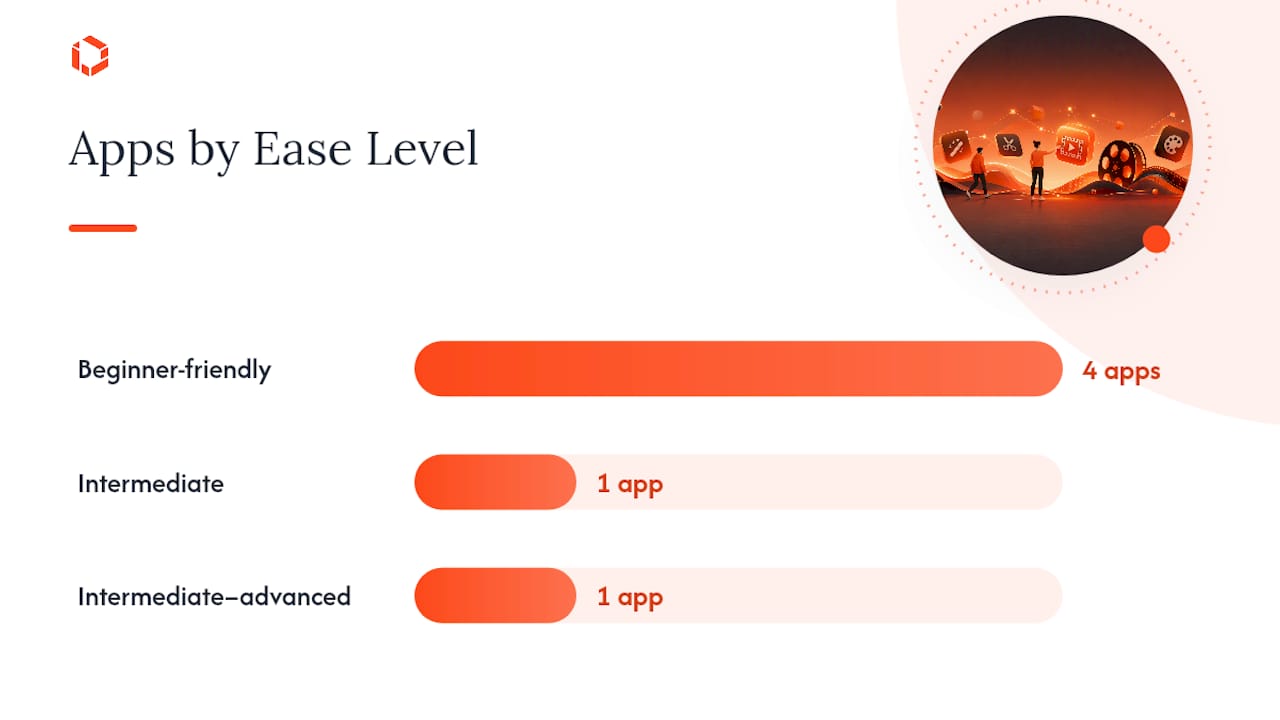
App | Best For | Platforms | Price Model | Free Tier Limits | Ease of Learning | AI/Automation Features |
|---|---|---|---|---|---|---|
CapCut | Free social editing | Desktop, mobile, web | Free (paid add-ons) | No watermark, no resolution cap | Beginner-friendly | Auto-captions, auto-edit, templates |
DaVinci Resolve | Free path to pro editing | Desktop | Free (paid Studio tier) | No watermark; some pro features Studio-only | Intermediate | Speed warp, voice isolation, scene cut detection |
Wondershare Filmora | Simple desktop editing | Desktop, mobile | Subscription or one-time | Watermarked free trial | Beginner-friendly | AI copilot, auto-highlight, background removal |
Adobe Premiere Elements | Guided desktop editing | Desktop | One-time purchase | No free tier (trial only) | Beginner-friendly | Guided edits, auto smart tone, face-based search |
Adobe Premiere Pro | Long-term pro upgrade | Desktop | Subscription | No free tier (trial only) | Intermediate to advanced | Auto reframe, scene edit detection, text-based editing |
Apple iMovie | Zero-friction Apple editing | Desktop, mobile | Free | No watermark, no cap | Beginner-friendly | Basic auto-enhance, magnetic timeline |
Final Cut Pro | One-time pro purchase (Mac) | Desktop | One-time purchase | No free tier (trial only) | Intermediate | Object tracking, auto color balance |
LumaFusion | Pro-level iPad editing | Mobile/tablet | One-time purchase | No free tier (trial only) | Intermediate | Multitrack automation, color presets |
InShot | Quick mobile trims | Mobile | Freemium | Watermarked free tier | Beginner-friendly | Auto-crop, basic templates |
VN | Free mobile timeline editing | Mobile, desktop (beta) | Free | Largely no watermark | Beginner-friendly | Auto-captions, beat sync |
Canva Video | Browser-based, no install | Web | Freemium | Free with Canva watermark on some assets | Beginner-friendly | AI Highlights auto-edit, templates |
Descript | Transcript-based editing | Desktop, web | Freemium | Limited transcription minutes | Beginner-friendly | Overdub, filler-word removal, auto-transcription |
A few clear winners emerge once you line these up. CapCut wins free mobile and cross-platform editing outright, with no serious watermark or resolution penalty attached to its free tier, according to Canva's own product comparisons and independent 2026 testing. DaVinci Resolve wins the "free tool that scales to professional work" category, though it demands more patience up front than CapCut does.
For guided, non-subscription desktop editing, Adobe Premiere Elements stands alone in this list. Its Quick, Guided, and Advanced modes exist specifically to walk a first-time editor through a project without a subscription commitment, a structure Digital Camera World highlights as a genuine differentiator from Adobe's subscription-only Premiere Pro.
One pattern worth flagging: several apps in this table gate their most useful AI tools behind paid plans or credit systems. Digital Camera World's testing notes this directly, and it's worth testing an app's free core workflow thoroughly before paying for AI extras you might not actually need for basic edits.
The Full Lineup: What Each Editor Actually Does
Each profile below covers what the app is, who it fits, and the single first move to make after installing it.
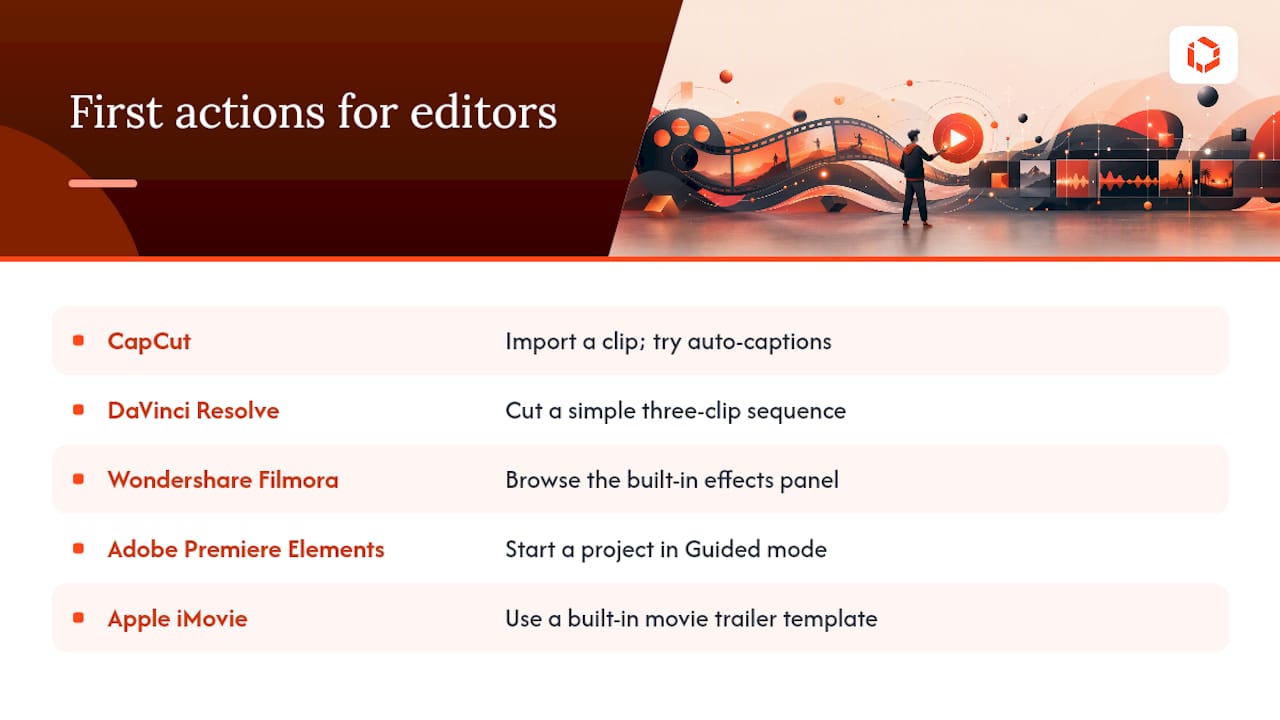
1. CapCut. A free, cross-platform editor built around social video, with a genuinely usable free tier. Best for creators posting to TikTok, Reels, or Shorts who want speed over control. Standout features: auto-captions, trending templates, no watermark. First action: import a clip and try the auto-caption tool before touching the manual timeline. Try it here.
2. DaVinci Resolve. A desktop editor built for professional workflows that happens to give beginners a shockingly complete free version. Best for anyone willing to spend a weekend learning a real timeline in exchange for color and audio tools other free apps don't offer. Standout feature: node-based color grading, normally a paid-tier feature elsewhere. First action: skip color grading on day one and just cut a simple three-clip sequence to learn the interface.
3. Wondershare Filmora. A Windows and Mac editor with a friendlier interface than most desktop tools and a large stock effects library. Best for beginners who want templates and AI tools without Resolve's steeper curve. Price model: subscription or one-time purchase, both watermark-free once paid. First action: browse the built-in effects panel before building your own transitions from scratch.
4. Adobe Premiere Elements. A beginner-focused desktop editor with a one-time license, not a subscription. Best for people who want Adobe's polish without Adobe's monthly bill. Standout feature: Guided Edits that walk you through specific project types step by step. First action: start a project in Guided mode, not Quick mode, even if it feels slower.
5. Adobe Premiere Pro. The industry-standard professional editor, included here because plenty of beginners plan to grow into it. Best for anyone who already knows they'll need After Effects or Photoshop integration eventually. Price model: subscription only. First action: don't start here unless you have a specific reason to; try Premiere Rush first as a lighter entry point into the same ecosystem.
6. Apple iMovie. Free, simple, and available on Mac, iPhone, and iPad. Best for absolute beginners who want to finish a first edit today, not this week. Standout feature: a magnetic timeline that auto-adjusts clips as you drag. First action: use one of the built-in movie trailer templates to see the whole workflow in five minutes.
7. Final Cut Pro. Apple's professional editor, sold as a one-time purchase rather than a subscription. Best for Mac users ready to move past iMovie without switching to a monthly plan. Standout feature: performance tuned specifically for Apple Silicon chips. First action: import an iMovie project directly rather than starting from scratch.
8. LumaFusion. A professional-grade editor built specifically for iPad and iPhone. Best for mobile-first creators who want real multitrack editing without a laptop. Standout feature: color presets and audio ducking that rival desktop tools. First action: shoot and edit one full project entirely on the iPad before judging whether you need a desktop app at all. Read a breakdown of mobile-first editing apps for more on this category.
9. InShot. A stripped-down mobile editor for quick trims and captions. Best for casual users who post occasionally and don't want to learn a timeline. Price model: freemium, with a watermark on free exports. First action: use it for a single 15-second clip before deciding you need something more capable.
10. VN. A free mobile editor with a clean, CapCut-style interface and largely watermark-free exports. Best for creators who want CapCut's simplicity without its parent company. Standout feature: beat-sync tools for music-driven edits. First action: try the auto-caption feature on a talking-head clip.
11. Canva Video. A browser-based editor with drag-and-drop timelines and AI Highlights auto-editing. Best for beginners who'd rather skip installation entirely. Standout feature: AI Highlights that auto-selects the best moments from raw footage. First action: upload footage and let AI Highlights generate a rough cut before manually adjusting it.
12. Descript. An editor built around transcript-based editing rather than a traditional timeline. Best for interview or talking-head content creators. Standout feature: delete a word from the transcript, and the matching video frame disappears too. First action: upload a short interview clip and try cutting filler words directly from the text.
How to Pick the Right Beginner Editor for You
Picking an editor comes down to answering a handful of practical questions, not chasing the app with the most features.
Device and platform. If you're editing almost entirely on a phone, mobile-native apps like CapCut, InShot, or LumaFusion will feel more natural than a desktop tool ported down to a small screen. TouchZen's guide to iPhone editing apps digs deeper into this if mobile is your main platform.
Free-tier constraints. Some "free" apps quietly cap your resolution or slap a watermark on every export. CapCut and DaVinci Resolve avoid both problems; InShot and some Filmora trial paths don't.
Export needs. If you're posting to multiple platforms, check whether the app offers direct social presets (CapCut and VN both do) or forces you to manually set aspect ratios and bitrates yourself.
AI and automation. Auto-captioning, auto-highlight reels, and text-based editing save real time, but as Digital Camera World notes, many of these tools sit behind paid tiers or credit systems even in apps that market themselves as free.
Growth path. Ask whether the app you're starting with has a ceiling. iMovie and InShot are excellent starting points but plateau quickly. DaVinci Resolve, Final Cut Pro, and Premiere Pro have almost no ceiling at all.
Budget and privacy. One-time purchases (Premiere Elements, Final Cut Pro, LumaFusion) avoid subscription fatigue. If privacy matters to you specifically, check where an app processes footage. Cloud-based AI tools upload your clips somewhere; fully local desktop tools generally don't.
Use this two-step flow to narrow things down fast:
Step 1: What's your primary device? Phone-only points you to CapCut, VN, InShot, or LumaFusion. Desktop-only opens up DaVinci Resolve, Filmora, Premiere Elements, and Final Cut Pro. No preference, and comfortable in a browser, points you to Canva Video.
Step 2: Are you trying to learn real editing skills, or just get a clip posted today? Skill-building points to DaVinci Resolve or Premiere Elements. Speed points to CapCut, iMovie, or VN.
A few red flags to watch for while testing: apps that hide the watermark toggle behind a paywall you only discover at export time, apps with no offline mode when you're editing on unstable Wi-Fi, and any app that doesn't let you export your original raw footage separately from the edited version.
Pro Tip: Always export a copy of your original, unedited footage before you start cutting, and note which export preset you used for your first finished video. Six months from now, when you've upgraded apps, you'll want that original file and that preset to redo the edit properly instead of starting from scratch.
How These Picks Were Evaluated
Every app on this list was checked against a consistent set of beginner-relevant criteria rather than ranked on brand reputation alone.
Install and setup time, measured from download to first open project.
Time to first export, tracking how long it takes a first-time user to get from raw clip to finished file.
Auto-features tested directly, including auto-caption accuracy and auto-edit/highlight quality where available.
Platform availability confirmed across desktop, mobile, and web where each app claims support.
Free-tier claims verified against actual export behavior, specifically watermark presence and resolution caps.
Findings draw on hands-on vendor documentation and independent 2026 testing, including PCMag's video editing software testing, Digital Camera World's buying guide, and BestOverallApps' 2026 roundup. This isn't exhaustive lab testing across every device and OS version, so treat specific numbers like export speed as directional rather than absolute. This guide gets reviewed and updated as vendors change pricing or free-tier terms, which happens often enough in this category to matter.
What TouchZen's App Development Experience Adds Here
Recommending a video editor is one thing. Understanding why an app's editing features succeed or fail inside a real product is another.
That experience building in-app media features, not just recommending third-party ones, shapes how this guide evaluates things like auto-caption accuracy, export speed under load, and where AI automation genuinely saves time versus where it's a checkbox feature. When an app's AI tool is gated behind a credit system, that's the kind of product decision TouchZen's team has made and defended from the other side of the table.
Do Trial Periods and Refunds Actually Protect Beginners?
Most paid beginner editors offer some form of trial, but the terms vary enough to trip people up. Adobe Premiere Elements and Final Cut Pro typically offer a limited free trial period before requiring the one-time purchase, letting you test the actual editing experience before paying. Subscription tools like Premiere Pro and Filmora generally follow standard app-store or vendor refund policies, which usually means a short window (often seven to fourteen days through app stores) to cancel and get your money back if the tool isn't a fit.
The safer approach for a beginner: never buy a paid editor based on marketing screenshots alone. Every major paid tool on this list has a free trial or free tier you can test the real interface with first. If an app doesn't offer any way to try before you buy, treat that as a mild red flag rather than a dealbreaker, and check the vendor's own refund policy page directly rather than trusting a third-party summary, since these terms change without much notice.
One practical note: app-store purchases (through Apple's App Store or Google Play) are usually refunded through the store itself, not the software vendor, which can mean a different process and timeline than a purchase made directly on a vendor's website.
Why Most Beginner Editor Advice Misses the Point
The conventional wisdom treats "best beginner editor" as a fixed ranking, as if one app wins for everybody. That's backwards. The real signal isn't which app has the most features. It's how fast a specific person, on their specific device, gets from raw footage to something they're proud to post.
What's overrated: feature checklists. Nobody's first video needs fifteen transition styles. What's underrated: how honestly an app's free tier behaves once you hit export. CapCut earning its reputation isn't about flashy AI, it's about not punishing you at the finish line with a watermark you didn't expect.
If you're starting today, prioritize speed to a finished export over feature depth. Pick the app that matches your device, make one complete video in the next thirty minutes, and only then decide if you've outgrown it. Most beginners quit not because the software was too simple, but because they never finished a single project before switching apps.
Some companies build custom mobile apps for startups and companies that need editing, AI automation, or media workflows baked directly into their own product rather than bolted on through a third-party editor. That can include AI avatar and video-generation capabilities, such as automated avatar creation and talking-avatar videos, built specifically around your content rather than a generic template.
When an Off-the-Shelf Editor Isn't Enough
CapCut, Canva Video, and Descript solve the problem of editing footage you already have. They don't solve a different problem entirely: building editing capability directly into your own app, with your own brand, your own AI pipeline, and a workflow your users never have to leave.
That's a different job, and it's the one TouchZen actually does.
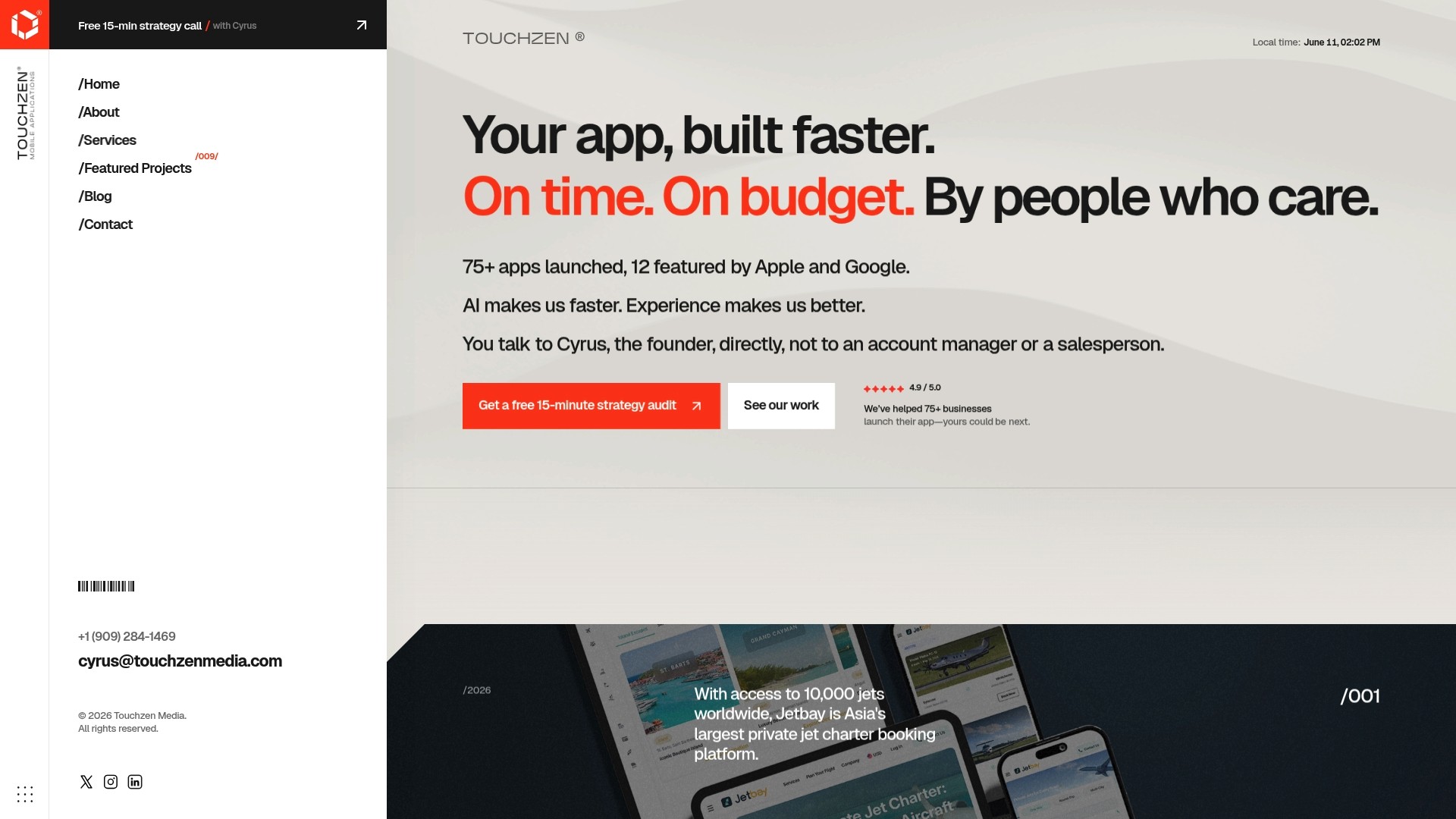
Some companies build custom mobile apps for startups and companies that need editing, AI automation, or media workflows baked directly into their own product rather than bolted on through a third-party editor. That can include AI-powered app features like automated highlight generation or smart tagging built specifically around your content, not a generic template. Some agencies emphasize direct communication with senior developers and designers from kickoff through launch, which can mean fewer surprises and faster timelines.
This route costs more than downloading CapCut and isn't the right call for a solo creator posting weekend clips. It's for teams and brands that need integrated mobile app development around media, not a standalone editing app. If that's your situation, start with a conversation about what you're actually trying to build at TouchZen.
Sources
FAQ
Which Video Editor Should I Use in 2026?
For most beginners, CapCut is the strongest starting point because of its genuinely free, watermark-free tier and built-in auto-captions. If you want a free path into professional-grade tools, DaVinci Resolve is the better long-term choice.
Which Video Editor Is Easiest for Beginners to Learn?
Apple iMovie and CapCut both let a first-time user finish a simple edit within minutes, thanks to templates and auto-features that remove most manual timeline work. Canva Video is similarly fast since it runs entirely in a browser with no install step.
Is Video Editing Worth Learning in 2026?
Yes. AI automation has made basic editing faster than ever, but understanding pacing, cuts, and captioning still separates content that gets watched from content that gets scrolled past. Free tools like CapCut and DaVinci Resolve remove the cost barrier to learning these skills.
Which Video Editing App Is Best for Absolute Beginners?
Apple iMovie wins for zero-friction simplicity on Apple devices, while CapCut wins for cross-platform beginners who also want social-ready export presets. Both let you finish and export a first project the same day you install them.
Do I Need to Pay for a Video Editor as a Beginner?
No. CapCut, DaVinci Resolve, Apple iMovie, VN, and Canva Video all offer capable free tiers without forcing an upgrade for basic editing. Paid tools like Premiere Elements or Final Cut Pro only make sense once you've outgrown what a free app offers.


