

Joy Foroughi
Executive Assistant


Mobile App Accessibility Checklist: What to Test Before Launch
Ensure your app's success with this essential Mobile App Accessibility Checklist. Find out what founders should test before launch!

TL;DR:
Running these six accessibility checks before release helps your app prepare for procurement and compliance reviews while improving usability for people with disabilities. Automated tools cannot identify every issue, so manual testing with assistive technologies is essential. Fixing critical accessibility problems before launch can also reduce remediation, legal, financial, and reputational risks.
Before your app ships, run these six release-critical checks: screen-reader navigation on core flows, touch target sizing on every CTA, color contrast ratios across all states, accurate accessibility labels and semantic roles, gesture alternatives for swipe-only interactions, and programmatic error announcements on forms. These aren't nice-to-haves. These checks help identify serious accessibility barriers before launch, support procurement and compliance reviews, and improve usability for the roughly one in four U.S. adults living with a disability.
TL;DR — Pre-Release Accessibility Checklist (copy into your release ticket):
Screen reader (VoiceOver on iOS, TalkBack on Android) completes all Red Routes without dead ends
All interactive touch targets meet minimum 44×44 pt (iOS) / 48×48 dp (Android) sizing
Text and UI component contrast ratios pass WCAG 2.2 AA (4.5:1 for normal text, 3:1 for large text and UI components)
Every interactive element carries an accurate accessible name, role, and state
All gesture-only controls have a tap or button alternative
Form validation errors are announced programmatically, not just shown visually
WCAG 2.2 provides a current framework for evaluating mobile accessibility, alongside Apple and Android’s platform-specific guidance. However, the exact standard required for legal or procurement purposes depends on the organization and jurisdiction. VoiceOver (iOS) and TalkBack (Android) are the two assistive technologies you must test with on physical devices before any release.
Pro Tip: The fastest way to surface high-impact regressions is to run your top three user journeys with VoiceOver or TalkBack on a physical device at maximum font scale. This single test exposes screen-reader dead ends, reflow failures, and label errors simultaneously, usually in under 30 minutes.
Why accessibility is a launch requirement, not a post-launch task
The short answer: skipping accessibility checks before launch exposes your startup to legal risk, blocks enterprise deals, and costs significantly more to fix after the code is shipped.
Enterprise buyers increasingly treat accessibility compliance as a mandatory shortlist criterion; failing accessibility checks can remove an app from procurement consideration regardless of how strong its feature set is. If your go-to-market plan includes selling to mid-market or enterprise accounts, expect a VPAT (Voluntary Product Accessibility Template) or an Accessibility Conformance Report (ACR) to appear in the vendor questionnaire. Some enterprise and public-sector buyers request accessibility documentation such as a VPAT or ACR. Missing documentation may delay or weaken a deal, depending on the buyer’s procurement requirements.
In the United States, accessibility obligations depend on the organization and context. The Department of Justice’s Title II rule requires covered state and local government mobile apps to meet WCAG 2.1 Level AA, subject to its compliance timelines and exceptions. Private-sector obligations can depend on the service, jurisdiction, and applicable law, while WCAG is frequently used as an accessibility benchmark. Section 508 applies to federal agencies’ information and communications technology and relevant federal procurement. In the EU, the European Accessibility Act applies to covered products and services—including areas such as e-commerce, banking, passenger transport, and electronic communications—rather than automatically applying to every app sold in Europe.
Risks of skipping pre-launch accessibility checks:
Lost enterprise deals when procurement teams require WCAG 2.2 conformance documentation
ADA litigation exposure, which carries both legal fees and reputational cost
Blocked integrations with enterprise platforms that enforce accessibility standards in their vendor ecosystems
Higher remediation costs after launch, when fixes may require redesign, regression testing, and another release cycle
Negative App Store reviews from users with disabilities, which directly affect your store ranking and conversion
Standards and documentation stakeholders will ask for:
WCAG 2.2 Level AA conformance (the current enterprise default)
VPAT / ACR documenting which criteria are supported, partially supported, or not applicable
Platform-specific conformance notes for iOS and Android
Common mobile accessibility failures you need to catch before launch
Most accessibility failures that block users and enterprise buyers fall into a predictable set of categories. Knowing the severity of each one lets your team triage fixes before the release date rather than scrambling after.
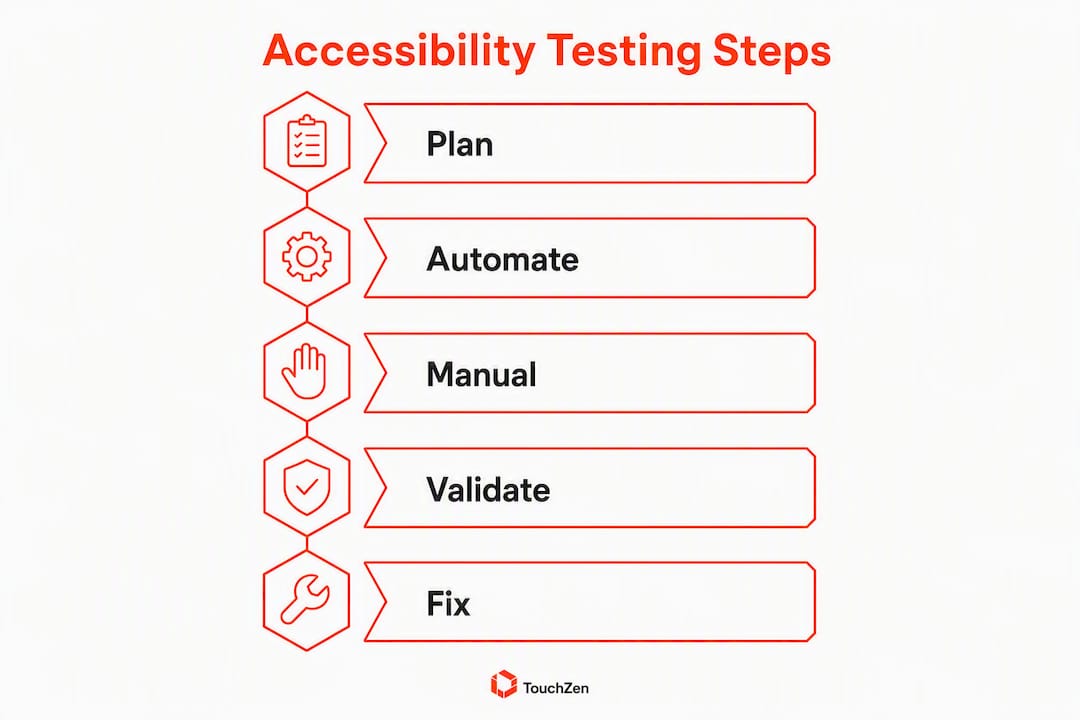
Automated tools can identify many rule-based issues, but they cannot reliably evaluate every focus, context, interaction, or real-world usability problem; the rest surface only through manual screen-reader testing and real-user validation. That's why the list below matters: these are the failures scanners miss.
Release-Critical failures (fix before shipping):
Missing or inaccurate accessibility labels on interactive elements
Screen-reader dead ends or focus traps in core journeys
Form errors that appear visually but are not announced
High-severity failures (fix before or immediately after launch):
Insufficient color contrast
Undersized touch targets
Text that truncates or overlaps at larger font sizes
Gesture-only interactions without a button or tap alternative
Pro Tip: Test your app in a "reset then toggled" state: start with default settings, then enable dynamic text scaling, increased contrast, and reduced motion one at a time. Many apps break only when these settings are toggled, and this sequence reveals reflow and logic errors that a default-state test will never catch.
What to test on iOS and Android before you ship
iOS and Android have different accessibility APIs, different assistive technologies, and different pre-launch tooling. Your engineering leads need platform-specific task lists, not a generic checklist.

iOS checks with VoiceOver and Accessibility Inspector
Apple recommends creating an accessibility testing matrix and testing main tasks with VoiceOver, Voice Control, and Switch Control on physical devices. The Accessibility Inspector in Xcode lets you audit element labels, traits, and values without leaving the simulator, but it does not replace device testing for interaction flows.
iOS checklist items:
VoiceOver reads every interactive element with an accurate label, role, and state (selected, expanded, disabled)
Dynamic Type scaling tested at the largest accessibility text size without truncation or overlap
Switch Control navigates all Red Routes in a logical sequence
Voice Control activates all labeled buttons by spoken name
Rotor actions work correctly for custom list and grid components
Accessibility Inspector shows no unlabeled elements or conflicting traits on any primary screen
Android checks with TalkBack and Accessibility Scanner
Android developer guidance explicitly recommends manual testing on physical devices for features that are unreliable or unavailable in emulators, including TalkBack and Switch Access. The Android Accessibility Scanner (available from the Play Store) overlays tap-target and contrast issues directly on your running app.
Android checklist items:
TalkBack reads all interactive elements in a logical reading order
Android Accessibility Scanner reports zero critical issues on primary screens
Google Play pre-launch report flags no touch-target, contrast, or missing-label issues when you upload to a release track
Semantics tree (inspectable via Layout Inspector in Android Studio) shows correct roles and states for custom components
All text passes 4.5:1 contrast ratio in both light and dark mode
For hybrid apps or any screen using WebView, run axe (Deque/axe-core) on the web content layer to catch rule-based violations that native scanners won't surface.
Pro Tip: Always test VoiceOver and TalkBack on physical devices with non-default system settings: 200% text size, increased contrast, and reduced motion all enabled. Emulators do not replicate the full system-level behavior of these settings, and failures found only at non-default states are among the most common causes of post-launch accessibility complaints.

Tool | Platform | What it checks | Best for |
|---|---|---|---|
VoiceOver | iOS (device) | Screen-reader navigation, labels, focus order | Manual flow validation |
Accessibility Inspector | iOS (Xcode) | Labels, traits, values, contrast | Static element audit |
TalkBack | Android (device) | Screen-reader navigation, reading order | Manual flow validation |
Android Accessibility Scanner | Android (device/Play) | Touch targets, contrast, labels | Automated overlay scan |
Google Play pre-launch report | Android (Play Console) | Touch targets, contrast, missing labels | CI/CD pre-release gate |
axe (Deque/axe-core) | Hybrid/WebView | Rule-based WCAG checks on web content | Automated CI checks |
How to run your pre-launch accessibility testing plan
The correct testing mix is automation plus manual assistive-technology testing plus real-user validation. No single layer covers everything: automation catches less than half of accessibility issues, manual screen-reader testing validates navigation and dynamic states, and real users with disabilities surface behavioral issues that neither layer finds.
Device matrix for pre-launch testing
Test on a minimum of four physical devices. Emulators are useful for static audits but insufficient for validating system-level accessibility settings.
Device | OS | Settings to enable | Assistive tech |
|---|---|---|---|
iPhone (recent mid-range) | iOS | Large text (max), Increase Contrast, Reduce Motion | VoiceOver, Voice Control |
iPad (if tablet layout exists) | iPadOS | Large text, Increase Contrast | VoiceOver, Switch Control |
Android flagship (e.g., Pixel 7) | Android | Largest font, High contrast text, Remove animations | TalkBack, Switch Access |
Android mid-range (e.g., Samsung Galaxy A-series) | Android | Largest font, High contrast | TalkBack, Accessibility Scanner |
Pre-launch test sequence
Run automated scans. Execute Xcode Accessibility Audit on all primary screens, run Android Accessibility Scanner on the same screens, and upload a build to a Play release track to trigger the Google Play pre-launch report. For hybrid/WebView screens, run axe in CI.
Fix all automated findings rated critical or high. Do not proceed to manual testing with open critical issues; they will compound the manual findings and waste testing time.
Run manual screen-reader journeys. On each physical device, complete the top three Red Routes (sign-up, core feature use, checkout or key conversion) using only VoiceOver (iOS) and TalkBack (Android). Log every dead end, mislabeled element, or broken focus state.
Test keyboard and switch-control navigation. Connect an external keyboard to an iPad and verify all interactive elements are reachable and operable. Run Switch Control on iOS and Switch Access on Android through the same Red Routes.
Run orientation and font-scaling stress tests. Rotate to landscape and enable maximum text size on each device. Confirm no content is clipped, overlapping, or inaccessible.
Schedule two to three real-user sessions. Recruit participants who use assistive technology daily. Platforms like UserTesting and disability-focused research networks can connect you with qualified participants. Brief sessions of 30–45 minutes on your Red Routes will surface behavioral issues no automated tool or internal tester will catch. For practical advice on recruiting testers, the guide on finding beta testers before launch covers recruitment strategies you can adapt.
Remediate and run a regression pass. Fix all Release-Critical and High findings, then re-run automated scans and spot-check manual flows to confirm fixes didn't introduce new issues.
Pro Tip: Add accessibility acceptance criteria to your Definition of Done and require a signed accessibility conformance note on every release ticket. Embedding checks early reduces remediation cost and timeline risk far more than a late-stage audit ever can.
Prioritized pre-launch checklist: Critical, High, and Medium
Your PM can paste this directly into Jira or Linear. Every item includes a measurable pass/fail criterion so there's no ambiguity at the release gate.
Critical (must fix before release):
Screen-reader navigation completes all Red Routes without dead ends or unlabeled elements
All CTA touch targets meet minimum sizing requirements
Error messages are announced programmatically by the screen reader on all form screens
Session timeout warnings appear and are announced before the session expires on critical flows
Focus order is logical and does not trap the user behind modals or overlays
High (fix in first patch, ideally before launch):
Color contrast passes WCAG 2.2 AA on all text and UI components, including disabled states
All gesture-only interactions have a tap or button alternative
Content at maximum text size does not truncate, overlap, or disappear
Medium (post-launch or next sprint):
Enhanced audio descriptions for non-essential media
Braille display compatibility for complex data tables
Optional assistive features (e.g., haptic feedback customization)
Check | Pass criterion | Estimated remediation |
|---|---|---|
Screen-reader Red Route navigation | Zero dead ends or unlabeled elements on all three Red Routes | 4 hours per route depending on component complexity |
Touch target sizing | All interactive elements ≥44×44 pt (iOS) / ≥48×48 dp (Android) | 2 hours per screen |
Color contrast (text) | 4.5:1 for normal text, 3:1 for large text and UI components | 1–4 hours per design token update |
Color contrast (UI components) | ≥3:1 for focus indicators, icons, and input borders | 1–4 hours per component |
Programmatic error announcements | Screen reader announces error text within 500ms of submission | 2–6 hours per form |
Focus management (modals) | Focus moves to modal on open; returns to trigger on close | 2–4 hours per modal |
Gesture alternatives | Every swipe/pinch action has a button or menu equivalent | 4 hours per gesture interaction |
What an accessibility audit covers and how scope affects cost
An accessibility audit can range from a focused review of core user journeys to a broader multi-platform assessment that includes manual testing, real-user research, remediation guidance, and conformance documentation. Timing and cost vary significantly based on the number of platforms, screens, user journeys, and required deliverables.
Scope options and deliverables:
Automated and static audit — Review labels, roles, states, contrast, touch targets, and other detectable issues.
Manual assistive-technology testing — Complete core journeys using VoiceOver, TalkBack, keyboard navigation, and switch controls.
Remediation guidance — Provide prioritized findings, reproduction steps, and developer-ready acceptance criteria.
Conformance documentation — Prepare a VPAT or ACR when required by the procurement scope.
Real-user sessions — Two to four moderated sessions with participants who use assistive technology daily. Deliverables: session recordings, behavioral findings, and prioritized recommendations.
How to choose scope: If your launch is within four weeks and you have no prior accessibility work, start with a smoke audit of Red Routes. If you're targeting enterprise accounts or government contracts, invest in a full audit with VPAT/ACR documentation before your first sales call. Integrating accessibility checks into CI/CD and scheduling periodic manual validation prevents the cost from compounding into a full remediation project later.
For broader pre-launch quality coverage, a website QA checklist can help you align accessibility gates with your overall release criteria.
How engineers should fix the most common accessibility failures
Most accessibility failures have repeatable, well-documented fixes. The top three patterns that appear in nearly every mobile audit are: missing accessible names on custom controls, broken focus management on modals and overlays, and silent dynamic content that never announces state changes to the accessibility tree.
Semantic labels and roles. Every interactive element needs an accessible name, role, and state exposed to the platform's accessibility API. For native iOS, set accessibilityLabel, accessibilityTraits, and accessibilityValue on custom UIView subclasses. On Android, use contentDescription for non-text elements and ViewCompat.setAccessibilityDelegate() for custom roles and states. In React Native, use the accessible, accessibilityLabel, accessibilityRole, and accessibilityState props. The rule: if a sighted user can see it and interact with it, the accessibility tree must describe it.
Focus management for modals. When a modal or bottom sheet opens, programmatically move focus to the first interactive element inside it. When it closes, return focus to the element that triggered it. In SwiftUI, use @AccessibilityFocusState. In Jetpack Compose, use FocusRequester. In React Native, use AccessibilityInfo.setAccessibilityFocus(). Skipping this step is the single most common cause of focus-trap failures in audits.
Programmatic announcements for dynamic content. When content updates without a navigation event (a loading state resolves, a form error appears, a counter increments), the screen reader won't notice unless you tell it. On iOS, post a UIAccessibility.Notification (.announcement or .layoutChanged). On Android, call View.announceForAccessibility() or set accessibilityLiveRegion. In React Native, use AccessibilityInfo.announceForAccessibility().
Design-level fixes your team should standardize:
Build a color token system where every text/background pair is pre-validated against WCAG 2.2 AA contrast ratios. Tools like Stark (Figma plugin) or Colour Contrast Analyser let designers verify pairs before any code is written.
Set minimum touch target sizes as a component spec in your design system: 44×44 pt on iOS, 48×48 dp on Android. Smaller visual elements can meet this by adding invisible tap area padding.
Document gesture fallbacks in your component library so every swipe, pinch, or drag interaction ships with a documented alternative.
Pro Tip: Add accessibility smoke tests to your CI pipeline that verify semantics tree coverage for Red Routes. A test that asserts every button on the sign-up screen has a non-empty accessible name will catch label regressions before they reach QA, and it takes less than an hour to write.
For design-level component guidance, the UI design guide for startups covers component specs and token systems that map directly to accessible design patterns.
How to integrate accessibility into every build
TouchZen treats accessibility as a Definition of Done item, not an afterthought. The workflow below is what the team applies across every engagement, and it's a process any founder can adopt or commission.
Discovery and design QA — Define accessibility requirements and validate contrast, touch targets, text scaling, and component behavior.
Development — Implement accurate names, roles, states, focus management, and programmatic announcements.
Accessibility QA — Combine automated checks with manual VoiceOver and TalkBack testing on core user journeys.
Release review — Resolve critical findings, document remaining issues, and run regression checks before shipping.
Founders who want to see this process applied to their own build can book a discovery call with the TouchZen team to scope an accessibility review or a full development engagement.
Key Takeaways
Running the six release-critical accessibility checks (screen-reader navigation, touch targets, color contrast, semantic labels, gesture alternatives, and programmatic error announcements) before launch prevents enterprise disqualification, ADA exposure, and costly post-launch remediation.
Point | Details |
|---|---|
Automation has limits | Automated tools catch under 50% of accessibility issues; manual screen-reader testing on physical devices is required for every release. |
Physical devices are mandatory | VoiceOver, TalkBack, and Switch Control behave differently on real hardware; emulators cannot replicate system-level accessibility settings reliably. |
WCAG 2.2 is the enterprise standard | Enterprise procurement and ADA compliance both reference WCAG 2.2 AA; document conformance in a VPAT/ACR before your first enterprise sales call. |
Embed checks early | Adding accessibility acceptance criteria to the Definition of Done reduces remediation cost far more than a late-stage audit. |
TouchZen's workflow | TouchZen embeds accessibility from design QA through post-launch monitoring across 75+ app launches, with VPAT/ACR-ready reporting at each release. |
Accessibility is product quality, full stop
There's a version of this conversation where accessibility gets framed as a compliance checkbox, something you do to avoid a lawsuit or pass a procurement filter. That framing is technically accurate but strategically shortsighted.
Every accessibility failure is a usability failure for someone. A focus trap that blocks a screen-reader user is also a keyboard navigation bug. A color contrast failure that affects a user with low vision also degrades readability for anyone using your app in bright sunlight. The overlap between accessibility and general UX quality is not incidental; it's structural.
What founders consistently underestimate is the compounding cost of deferral. A missing accessible name on a custom button takes a developer 10 minutes to fix during a sprint. The same fix, discovered during an enterprise procurement audit six months later, triggers a remediation sprint, a re-audit, and a delayed contract. The math is not subtle.
The practical trade-off for a startup with a hard launch date is not "full accessibility vs. ship on time." It's "fix Release-Critical items now, document High items for the first patch, and schedule a full audit before your first enterprise pitch." That triage is defensible, it keeps the launch date intact, and it doesn't hand your legal team a problem they didn't ask for.
TouchZen's pre-launch accessibility support for founders
TouchZen offers pre-launch accessibility reviews and remediation sprints for founders who need expert support before their release date, without the delays of a traditional agency handoff.
TouchZen's senior team works directly with your engineers and PMs, not through layers of junior staff, so findings get into your sprint backlog the same week. Three engagement options:
Quick accessibility audit (Red Routes) — A focused review of your three to five core flows, delivered in three to five business days with prioritized findings and developer-ready acceptance criteria.
With over 75 successful app launches across industries and a process built around direct senior-developer access, TouchZen is the agency partner for founders who need accessibility done right the first time. Talk to the team to scope your pre-launch review.
Useful sources and references
These are the official references your engineering and product teams should keep on hand. Platform docs are best for developers; WCAG guidance is essential for both developers and PMs; ADA and FCC references are the ones your legal team will want.
For developers:
Test your app's accessibility | Android Developers — Android's official testing guide covering TalkBack, Switch Access, and the Accessibility Scanner
Performing accessibility testing for your app | Apple Developer Documentation — Apple's guide to building an accessibility testing matrix with VoiceOver, Voice Control, and Switch Control
Mobile App Accessibility Checklist | University of Michigan — A structured checklist organized by WCAG criteria, useful for screen-by-screen audits
For PMs and founders:
ADA Web Guidance | ADA.gov — The U.S. Department of Justice's guidance on ADA obligations for digital services
21st Century Communications and Video Accessibility Act | FCC — Relevant for apps that include video or communications features
For legal and procurement teams:
ADA.gov web accessibility notice — Background on ADA rulemaking for web and digital accessibility
CDC disability statistics — U.S. disability prevalence data useful for business-case presentations
Source | Best for | Format |
|---|---|---|
Android Developer accessibility testing guide | Android engineers | Official platform docs |
Apple Developer accessibility testing guide | iOS engineers | Official platform docs |
University of Michigan mobile checklist | PMs running screen-by-screen audits | Structured checklist |
ADA.gov web guidance | Legal, compliance, founders | Policy guidance |
FCC CVAA guide | Apps with video/communications features | Regulatory reference |
QAwerk mobile accessibility checklist | PMs and QA leads | Practical testing guide |
FAQ
How do you test mobile app accessibility before launch?
Run a layered approach: automated scans (Xcode Accessibility Audit, Android Accessibility Scanner, Google Play pre-launch report), manual screen-reader walkthroughs with VoiceOver and TalkBack on physical devices, and two to three real-user sessions with participants who use assistive technology. Automation alone catches under 50% of accessibility issues, so manual testing is required, not optional.
What does an accessibility checker actually look for in a mobile app?
Automated accessibility checkers flag missing or empty accessible names, insufficient color contrast ratios, touch targets below minimum size, and elements with incorrect or missing roles. They do not catch focus-order errors, broken modal focus management, or silent dynamic content, which is why manual screen-reader testing is a required second layer.
What are the most important WCAG 2.2 criteria for mobile apps?
The highest-priority criteria for mobile map directly to the Release-Critical checklist items that block enterprise procurement, including contrast ratios meeting WCAG 2.2 AA, minimum touch target sizing, and accurate names, roles, and states for all UI components.
What factors should be tested in mobile app performance and accessibility together?
For a pre-launch release gate, test accessibility alongside performance under stress conditions: screen-reader navigation at maximum font scale (which stresses both layout reflow and accessibility tree rendering), app behavior under reduced motion settings, and focus management during loading states when network latency causes UI transitions. These overlapping conditions reveal failures that isolated testing misses.
Does ADA compliance apply to mobile apps in the United States?
Accessibility obligations can apply to mobile apps in the United States, but the exact requirements depend on the organization, service, and applicable law. The Department of Justice’s Title II rule specifically requires covered state and local government mobile apps to meet WCAG 2.1 Level AA. WCAG is also widely used as a practical benchmark in private-sector accessibility and procurement reviews, but meeting WCAG does not by itself guarantee compliance in every legal context.


